
OxiMailing
How do I manually unsubscribe an address?
Updated on November 27, 2026
Your unsubscribed contacts are the people who no longer want to receive your messages: OxiMailing never writes to them. When a recipient clicks the unsubscribe link in one of your messages, they are added to your unsubscribed list automatically.
You may need to add an address yourself (for example, someone asked you over the phone to stop writing to them). To do this:
Software
- In the ribbon, open the “Account” tab and click “Unsubscribed”.

- If you have several unsubscribe lists, pick the right one at the top of the window (“Unsubscribe list”).
- Click “Add…” (or press F2).
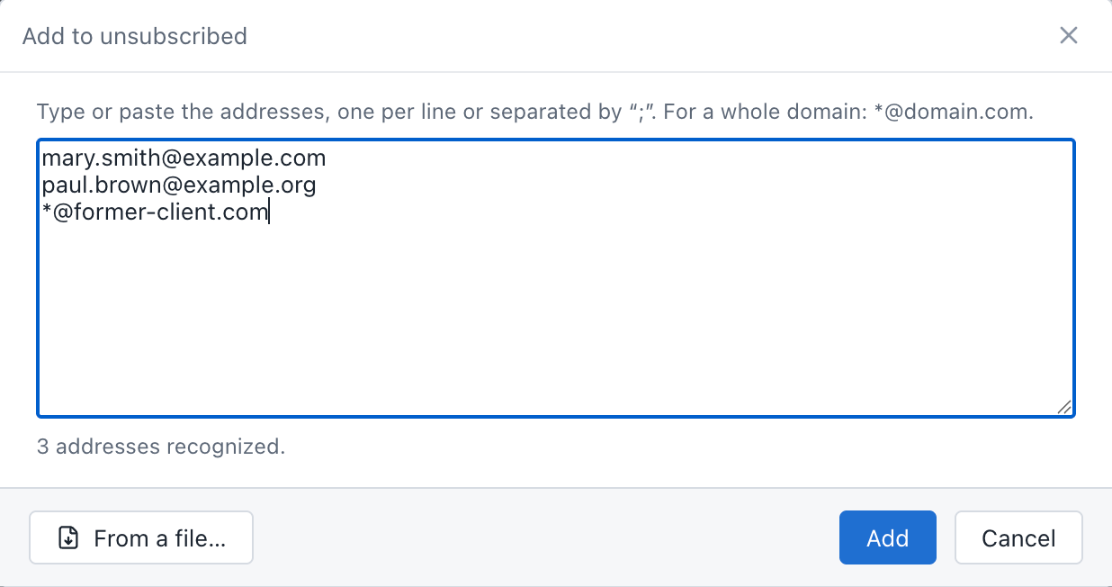
- Type or paste the addresses, one per line, then click “Add”. The “From a file…” button also lets you add a whole list.
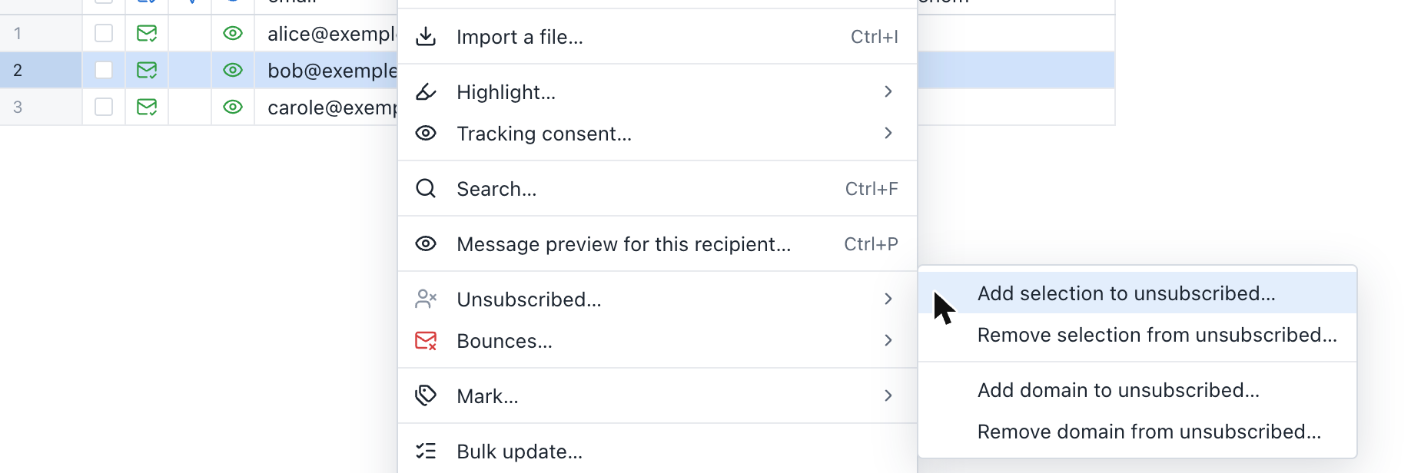
💡 A recipient of your campaign wants to unsubscribe? Right-click their row, then “Unsubscribed…” > “Add selection to unsubscribed…”.
Web app
- Open Contact Manager, then “Exclusion lists” > “Unsubscribed”.
- Click “Add / remove”.
- Paste one or more addresses, then click “Add to list”.
💡 You can also unsubscribe an entire domain with a wildcard: *@example.com.
That’s it.