How to consult the detailed tracking data?
Updated on November 28, 2026
Software
Open your campaign, then click “Detailed results” or “Events” in step “5 Results” of the left-hand column.
Detailed results
You will find all the recipients of the campaign, with their opens, clicks and status (unsubscribed, bounced…):
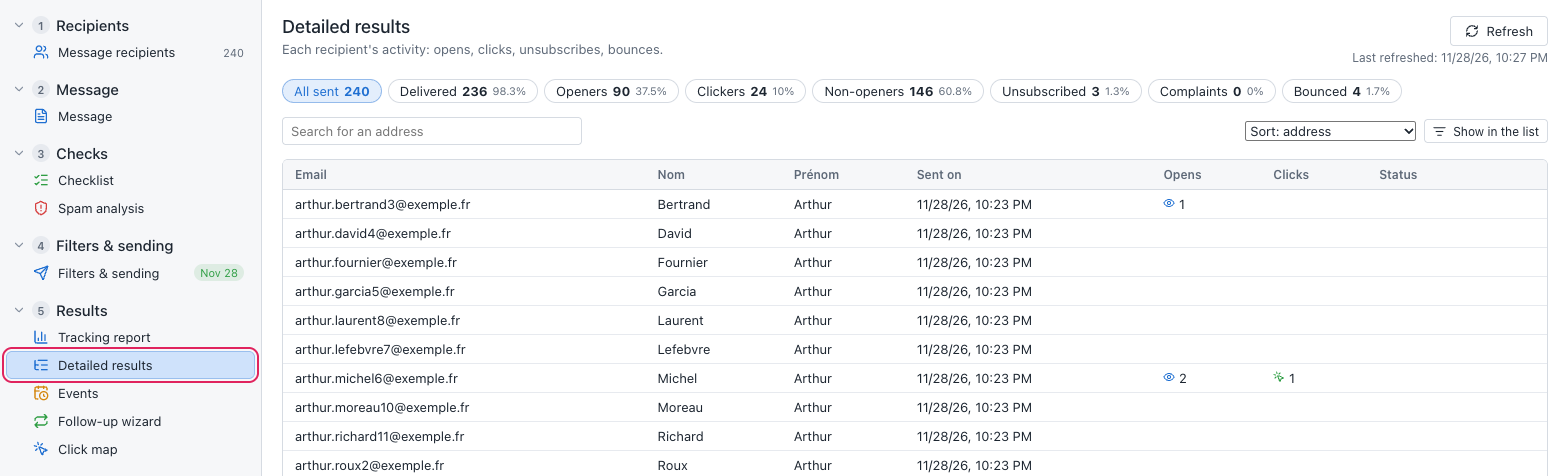
- The buttons at the top (“Delivered”, “Openers”, “Clickers”, “Non-openers”, “Unsubscribed”, “Bounced”…) filter the list.
- “Show in the list” finds these recipients in the campaign list (step “1 Recipients”): handy to highlight or export them.
- Double-click a recipient to see their events.
Events
The “Events” page lists opens, clicks, unsubscribes and bounces, from the most recent to the oldest. You can filter it by recipient, by event type or by link (to get the list of people who clicked a link in your message, for example).
To follow up with non-openers or clickers, see also the “Follow-up wizard”, in the same step.
Web app
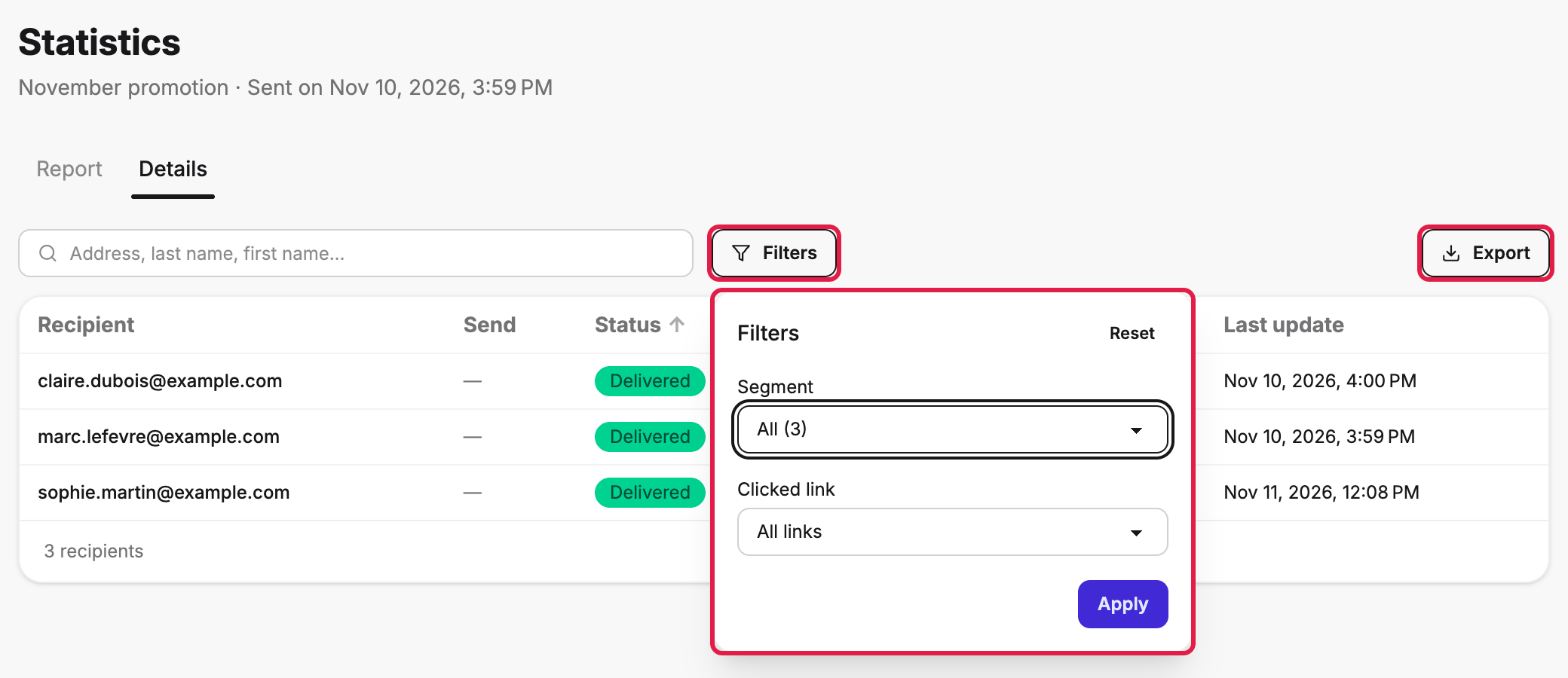
Go to “Campaigns” > “Statistics”, open your campaign and then the “Details” tab.
There you will find all your recipients, divided into segments: “Delivered”, “Openers”, “Clickers”, “Non-openers”, “Unsubscribed”, “Failed”…
The “Filters” panel lets you filter the list by segment, by send (if the campaign has several) or by “Clicked link” (to get the list of people who clicked on a link in your message, for example). The “Export” button lets you retrieve these results.
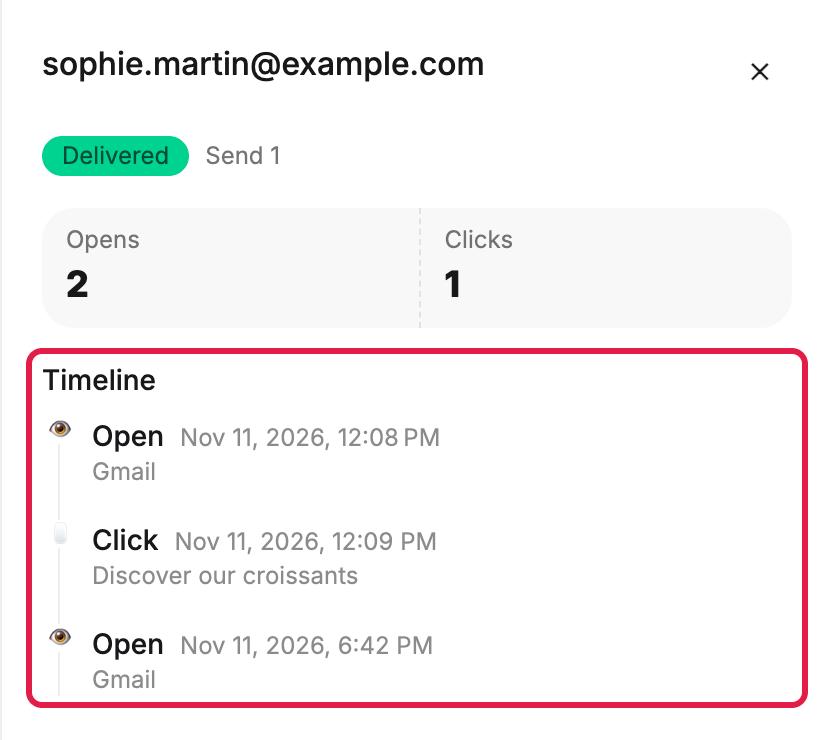
Click on a recipient to display the “Timeline” of their opens and clicks: