
How to Modify a Scheduled Online Campaign?
Updated on November 28, 2026
Have you scheduled a campaign and then noticed a typo in the content? The first thing to do is to make the necessary corrections in your message, but that’s not enough! You must also reschedule your sending for the message changes to be taken into account.
Software
Indeed, a scheduled send is passed to our servers with the message as it is at the time it was scheduled! You therefore need to cancel the schedule and set it up again.
To do this, open the campaign, click “Filters & sending” then, in the “Send history”, click “Cancel” on the row of the scheduled send:
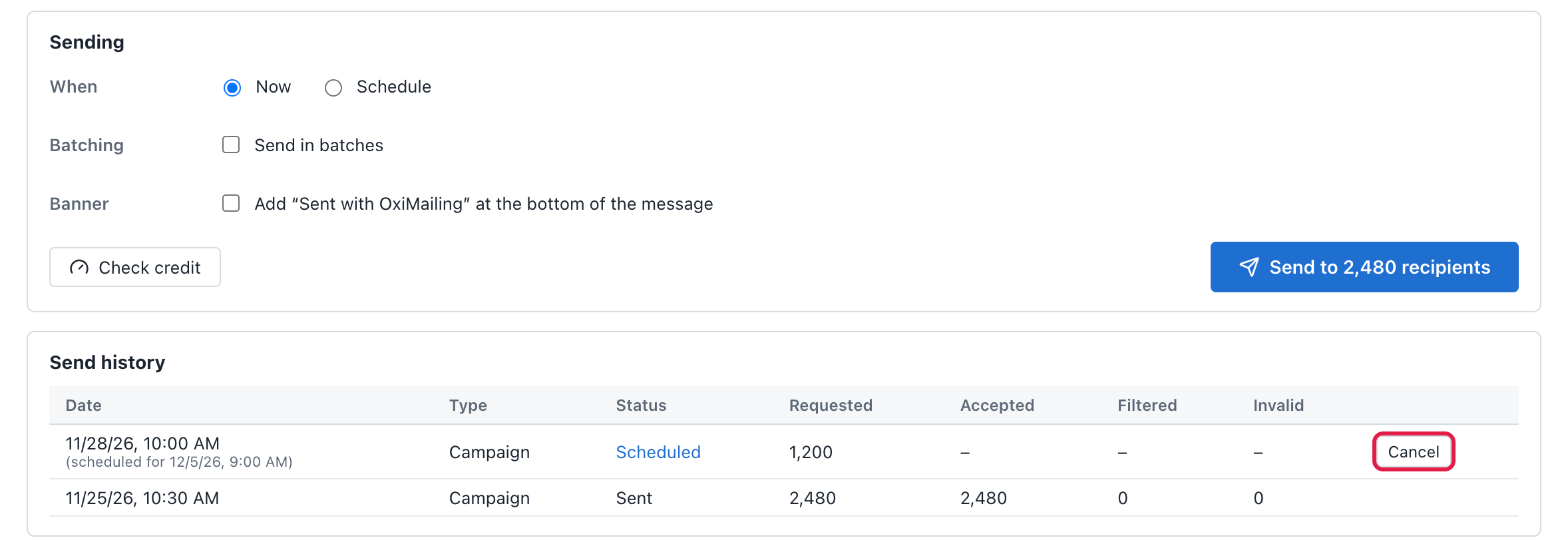
You will also find all the scheduled sends of your account, including those prepared in the web app, in the “Account” tab > “Scheduled sends”. A cancelled send does not go out, and its credit is given back to you.
All that remains is to schedule the send again (“When”: “Schedule”), which will take your content changes into account.
Web app
Indeed, a scheduled sending is transmitted to our servers with the message as it is at the time of its scheduling! You therefore need to cancel your scheduling and redo it.
To do this, click “Manage sends” in the “Des envois sont planifiés sur cette campagne” (Sendings are scheduled on this campaign) banner, then “Cancel” on the line of the scheduled sending.
All you have to do now is reschedule the sending with the “Send / Schedule” button, which will take your content changes into account.